A drawing tablet does not occupy only its advertised active area. Its surrounding border, shortcut buttons and cable also need space, and your hand must be able to move across it without bumping the keyboard. Measure the whole device and make an outline on the desk before buying or rearranging equipment.
Decide whether you mainly draw with keyboard shortcuts, use the tablet's buttons, or alternate with a mouse. That habit determines where the keyboard belongs. Pushing it far to one side may clear a large pen area but make a frequently used shortcut awkward to reach.
Start with the working hand
Place the tablet where the pen hand naturally operates, then position the keyboard for the other hand's recurring actions. Use a familiar drawing task for the trial: a few lines, a selection, a zoom and an undo. A tidy symmetrical arrangement is less important than moving between those actions without shifting the whole setup.
If the tablet supports rotation for left-handed use, follow its configuration instructions and check the cable exit. Do not assume turning the hardware over automatically changes the software mapping. Keep the pen holder in a place where reaching for it does not cross a cup or another device.
Include the screen relationship
A pen tablet without a display maps hand movement to a separate screen, while a pen display is itself a viewing surface. These arrangements create different space requirements. With a pen display, include the support angle and viewing position. With a separate tablet, consider how its active area corresponds to the display or displays you use.
Check the manufacturer's current driver support before setting up on a managed or unfamiliar computer. Keep the configuration simple initially so you can identify whether a problem comes from placement, mapping or an application shortcut.
Leave a place for ordinary work
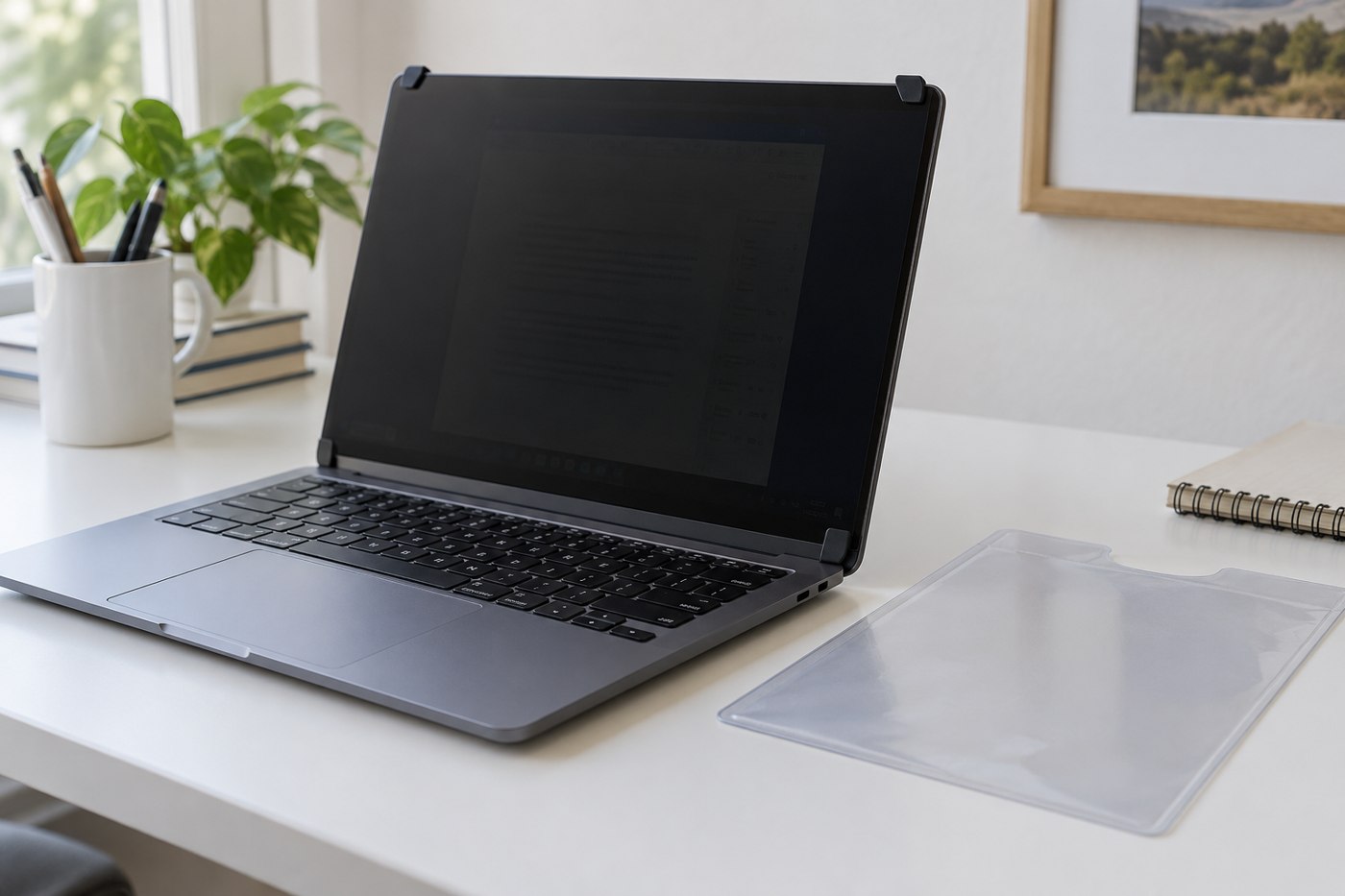
If the same desk is used for writing, plan where the tablet goes when it is not needed. Avoid resting a keyboard directly on the active surface unless the product's instructions allow that arrangement. A sleeve or clear shelf can protect the device without making it difficult to retrieve.
Reassess the layout after a real session. Notice where objects were repeatedly moved and where the cable got in the way. Those observations may suggest a smaller keyboard or a different tablet position; they do not automatically mean you need a larger tablet.