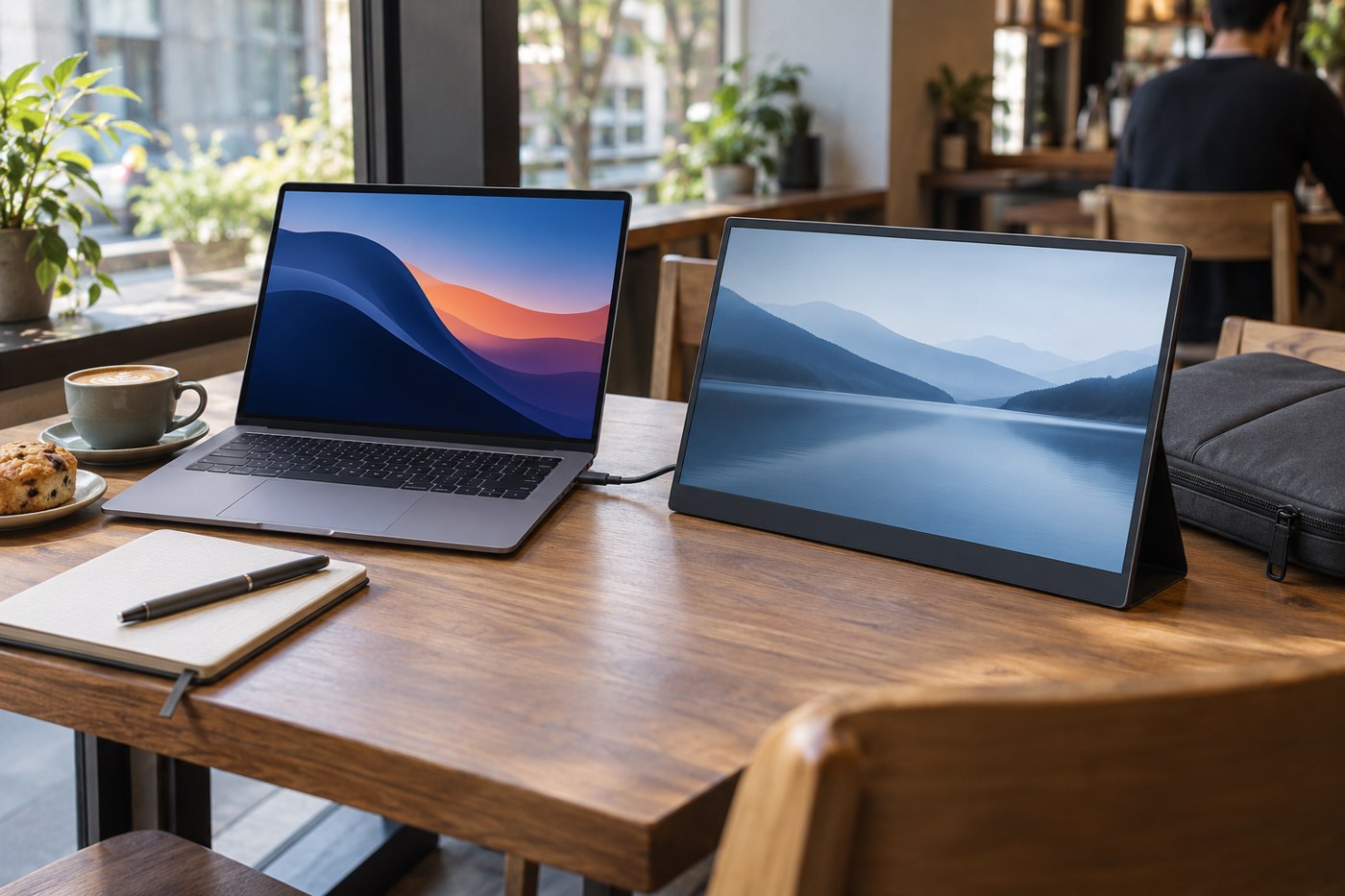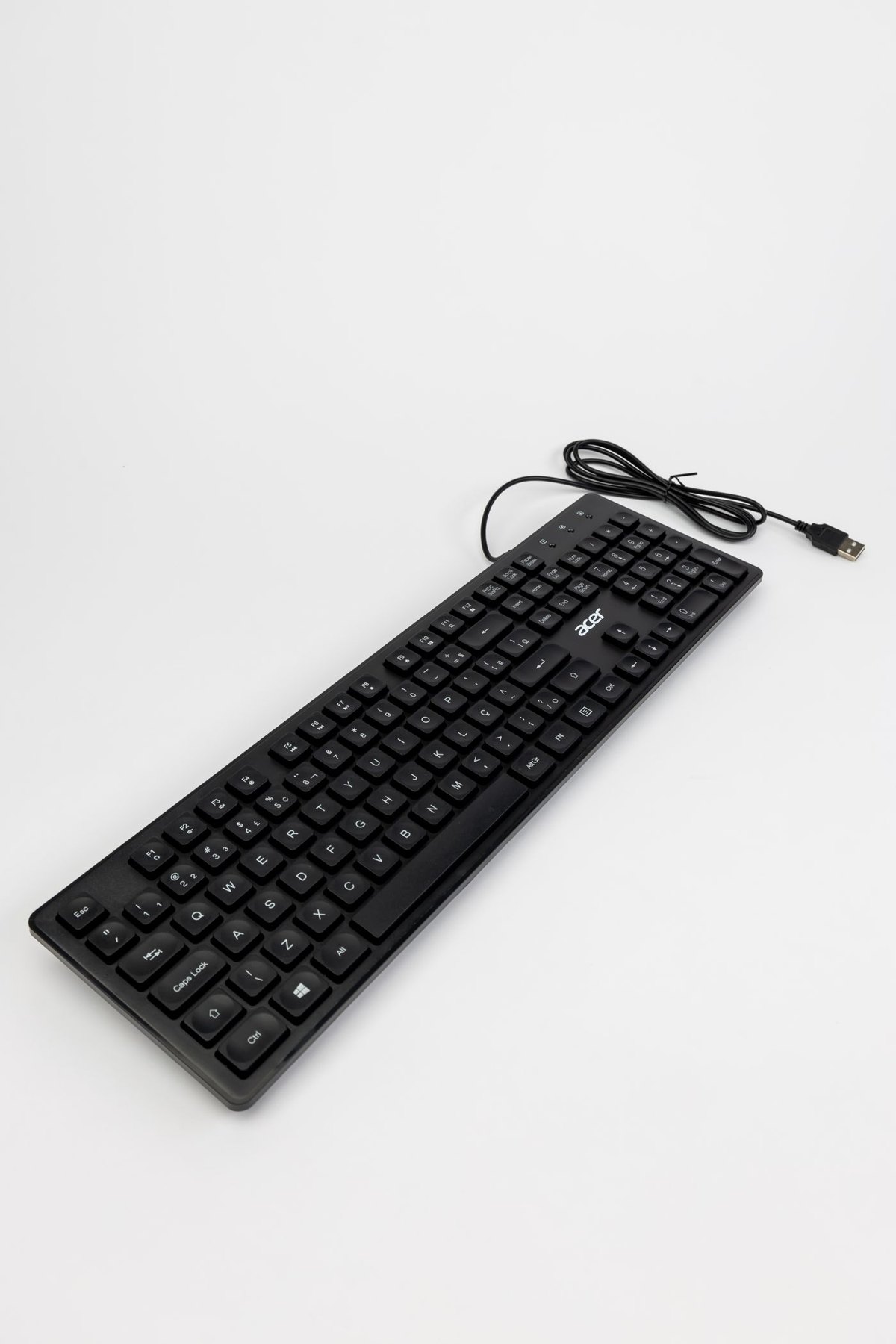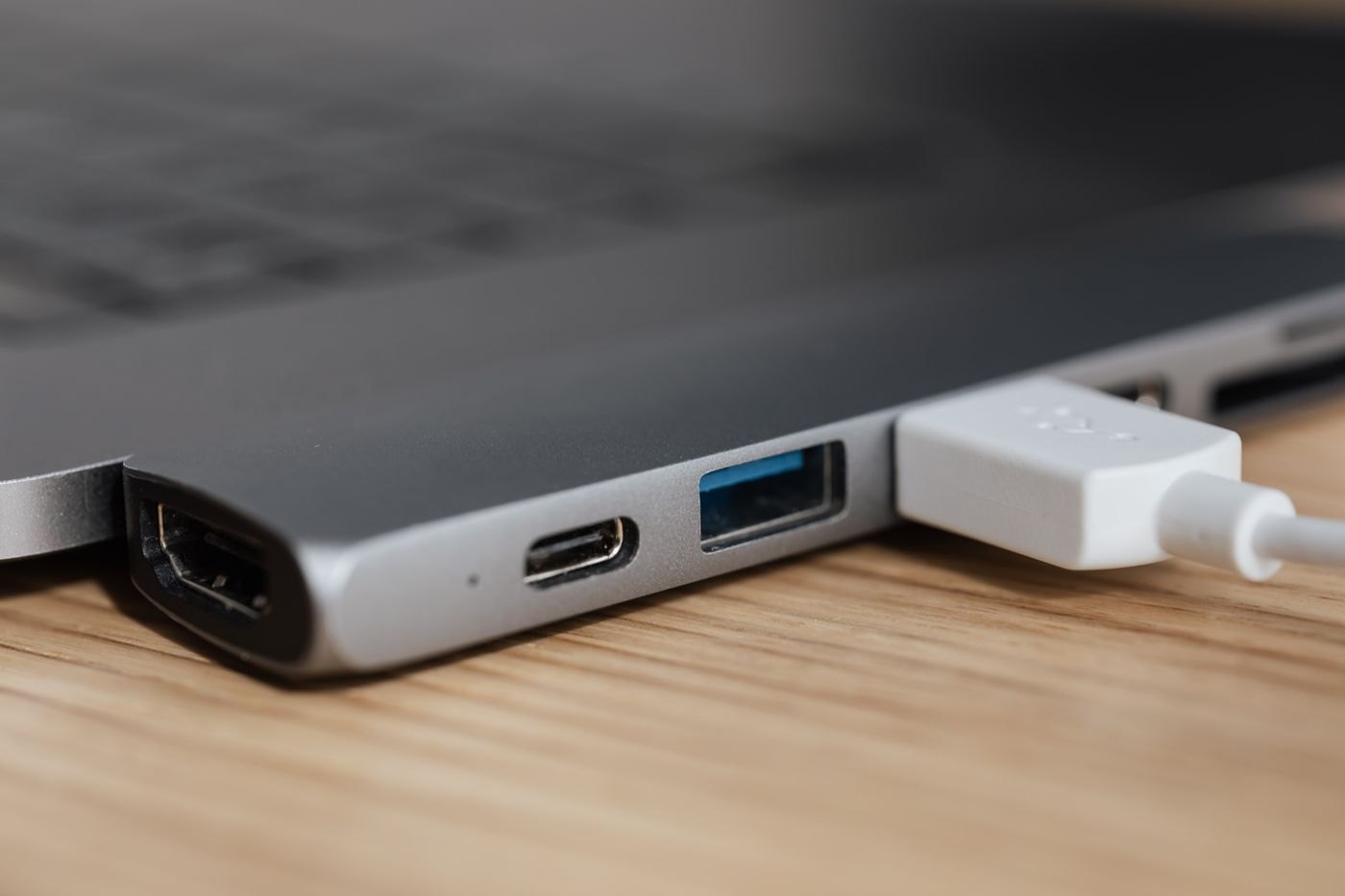
A monitor cable is a connection between two specific ports, not a promise that every feature printed on the monitor box will work. Start with the computer and monitor model numbers. A photograph of their sockets helps, but their manuals explain what those sockets can carry. Keep both documents open while choosing the cable.
Write down the result you want in ordinary terms: one external screen for documents, a particular resolution and refresh rate, or a screen that also charges the laptop. These are different requirements. A cable that produces a picture may still leave charging, a built-in USB hub or a higher refresh rate unavailable.
Read each end separately
Find the computer's display-output specification, then the monitor's input table. Note the full port names and any restrictions attached to them. On a desktop, check which socket belongs to the graphics hardware you actually use; the presence of another socket on the case does not establish that it is the intended output.
For USB-C, the connector shape alone does not establish video support. Microsoft documents that an Alternate Mode adapter needs a computer port supporting that mode. For a DisplayPort Alt Mode connection, verify that capability explicitly rather than treating a charging symbol or a successful file transfer as evidence.
Now look at the monitor end. A USB-C socket can be intended for a peripheral rather than video input. A display with several similar-looking sockets should have a diagram identifying their roles. Put the relevant input name on your shopping note, including whether the connection requires a separate power supply.
Keep resolution and refresh rate together
A claim such as 4K is incomplete without the refresh rate and any conditions stated by the manufacturer. Compare the mode supported by the computer, cable or adapter, and monitor input. If a dock is involved, include its compatibility table as another part of the connection, particularly when more than one display will be attached.
Do not add together unrelated headline numbers from separate product pages. A dock's maximum for one screen may not describe its operation with two screens, and a monitor may offer different capabilities through different inputs. When a listing leaves the combination unclear, ask the supplier about your exact computer, monitor and target mode before ordering.
An example shopping note
Suppose the laptop documentation confirms video over one USB-C port and the monitor offers HDMI and USB-C inputs. You want one screen for text work, but you also want the monitor to supply power. An HDMI adapter may satisfy the picture requirement while leaving laptop charging on a separate lead. A compatible USB-C connection could satisfy more of the plan, but only if the monitor's power-delivery specification and cable meet the laptop's requirement.
That is why the note should record each function separately. Ask the seller to confirm the complete combination instead of asking whether the cable is good for a laptop. If charging is optional, you can consciously choose the simpler verified video route and keep the existing charger. If one-cable use is essential, a product that merely produces a picture is not an equivalent alternative.
Save the relevant manual page or specification with the purchase record. It gives you a precise reference if the received cable differs from the listing or a later computer change alters the connection requirements.
Choose the route you can verify
A direct supported connection is easier to document than a chain of spare adapters. When conversion is necessary, check the stated source-to-display direction. Having the correct plugs at both ends is not sufficient evidence that an adapter works in reverse. Also measure the route around the stand and allow relaxed bends at the sockets instead of measuring a straight line across the desk.
After connecting, select the intended input on the monitor and inspect the operating system's display settings. Microsoft provides separate controls for display arrangement, resolution and refresh rate. Confirm the mode actually selected, then test waking the laptop and reconnecting the cable. Keep the packaging and the compatibility notes until you have tested the tasks that motivated the purchase.
The useful shopping record is short: computer model and output, monitor model and input, required display mode, cable length, and any charging or peripheral requirement. That record makes it much easier to compare two similar listings without being distracted by their largest printed number.