Microphone monitoring lets you hear your voice while recording, but there can be more than one route to the headphones. Understanding the route helps avoid a delayed echo, doubled voice or the mistaken assumption that hearing yourself proves the file is being saved.
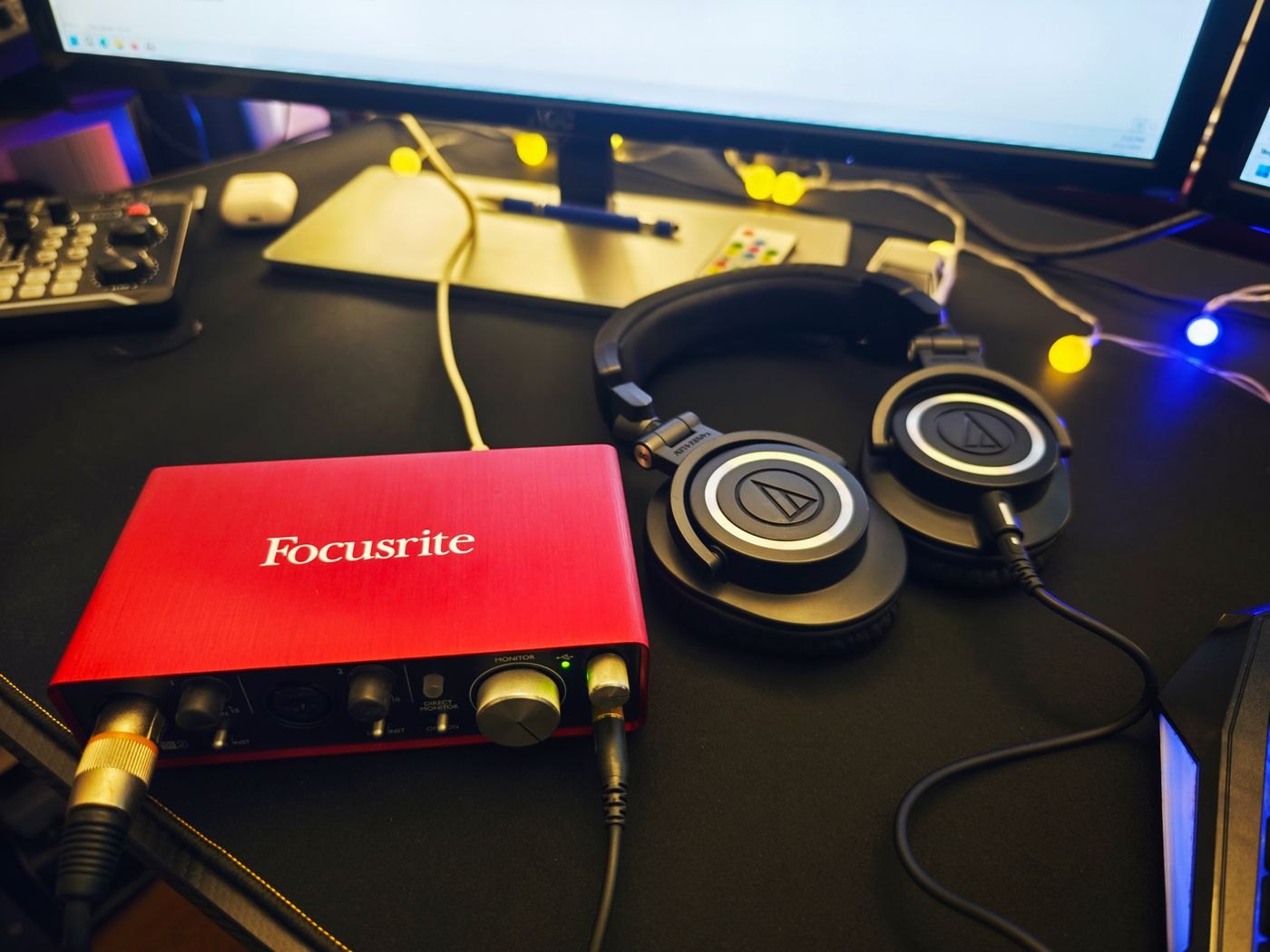
Focusrite describes direct monitoring as listening to the interface input with near-zero latency. Software monitoring instead involves the recording application and its processing path. A microphone with its own headphone socket may offer a related direct-monitor function, but the controls and signal routing depend on the model.
Choose the route intentionally
Read the device's monitoring instructions and identify the controls for input, computer playback and headphone volume. These controls may be separate. Raising headphone volume changes what you hear; it does not necessarily change the level being recorded.
If both direct and software monitoring are enabled, you may hear two versions of the voice. Follow the equipment and application instructions to use the route you need. Do not randomly disable inputs until the echo disappears, because that may also remove the recording signal.
Diagnose three different symptoms
If you hear your voice but the saved file is silent, direct monitoring may be working while the application is not recording the intended input. Inspect the selected device, channel and record state. Do not raise gain to solve a file-routing problem.
If the recording is present but your live voice sounds doubled, identify whether both the hardware and application are returning the microphone to the headphones. Temporarily choose one documented monitoring path and make another sample. The correct change is in routing, not necessarily a replacement microphone.
If the saved voice sounds fine but monitoring is quiet, inspect the headphone output level and the balance between input and computer playback. Keep the recorded input level at a suitable setting while adjusting the listening path. Changing both at once can turn a monitoring inconvenience into an overloaded recording.
These distinctions are especially helpful when moving between a meeting application and a recording program. They may use different monitoring defaults while sharing the same physical device. Save a brief note for each workflow so a working configuration can be restored without a long series of guesses.
Make a test with clear checkpoints
Create a short recording containing ordinary speech and a pause. Watch the application's input meter while speaking, then stop and play the saved take back. This establishes three different things: the microphone reaches the application, the recording process runs, and the resulting file contains the expected audio.
If you need to hear effects such as a software processor while speaking, check the application's monitoring arrangement and the computer's ability to handle it. If the priority is simply hearing your voice comfortably, the device's direct route may be sufficient. The right choice follows the task rather than a universal rule that one route is always preferable.
Keep output separate from input decisions
Use a comfortable headphone level and reduce it before changing unfamiliar routing or connections. Choose headphones that let you assess the voice without sound from loudspeakers feeding back into the microphone. Check the recording level separately using the device's guidance and the application's meters.
Save a note of the working settings once the route is clear. If a later update or new application changes the behaviour, that note helps you identify what moved. Monitoring is a way to supervise a recording, but listening back to the actual saved file remains the check that confirms what you captured.