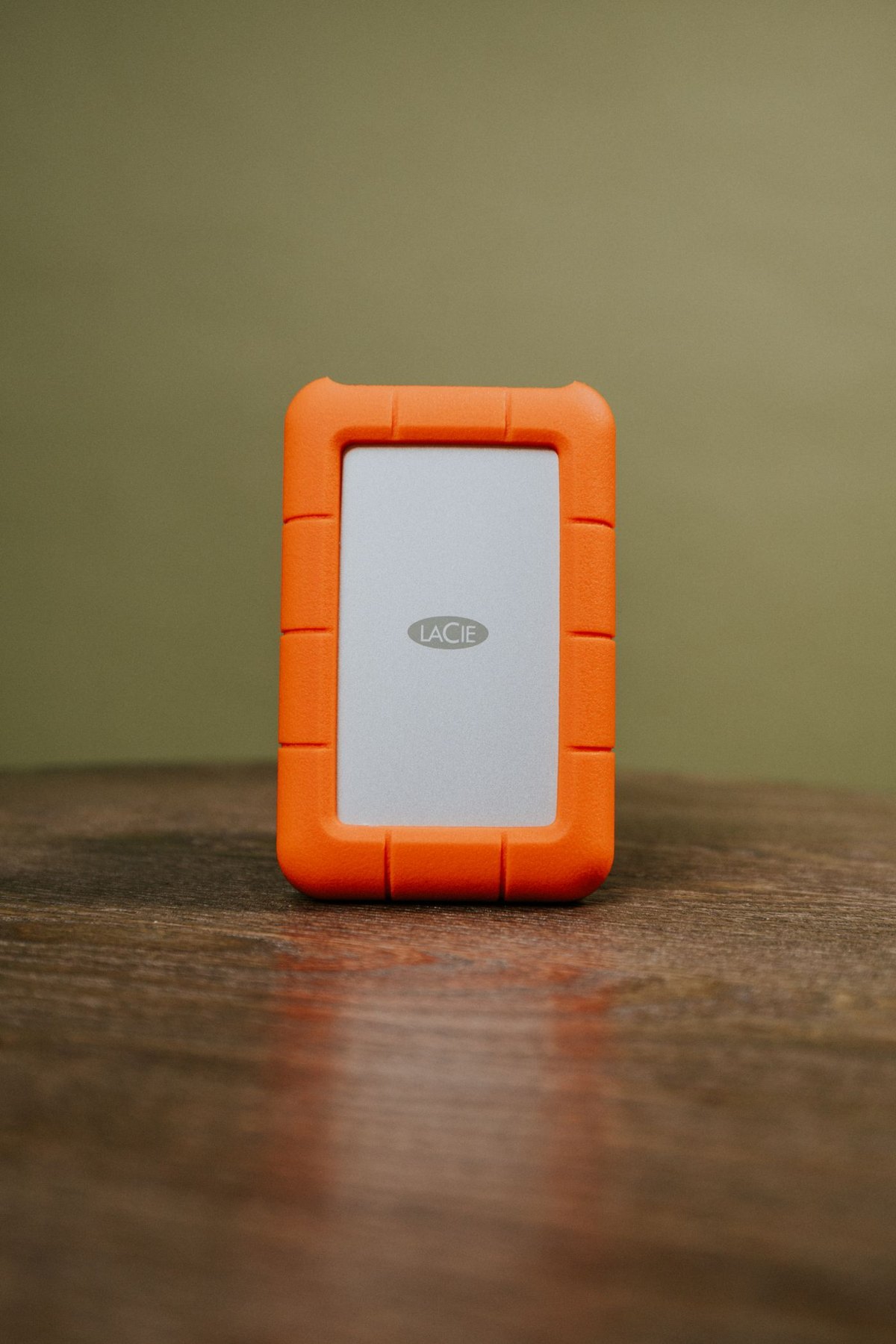
When an external drive disconnects or fails to appear, stop repeated trial-and-error copying long enough to record what happened. Note whether the drive was never detected, disappeared during a transfer or stayed visible while one application reported an error. Those are different observations; describing all of them as a broken drive makes troubleshooting harder.
If the drive contains your only copy of important material, avoid formatting, repair commands or repeated experiments that write to it. Preserve the current state and consider professional help for irreplaceable files. A computer suggesting that a disk needs to be initialised is not a reason to accept the prompt before understanding what is on it.
Change one part of the path
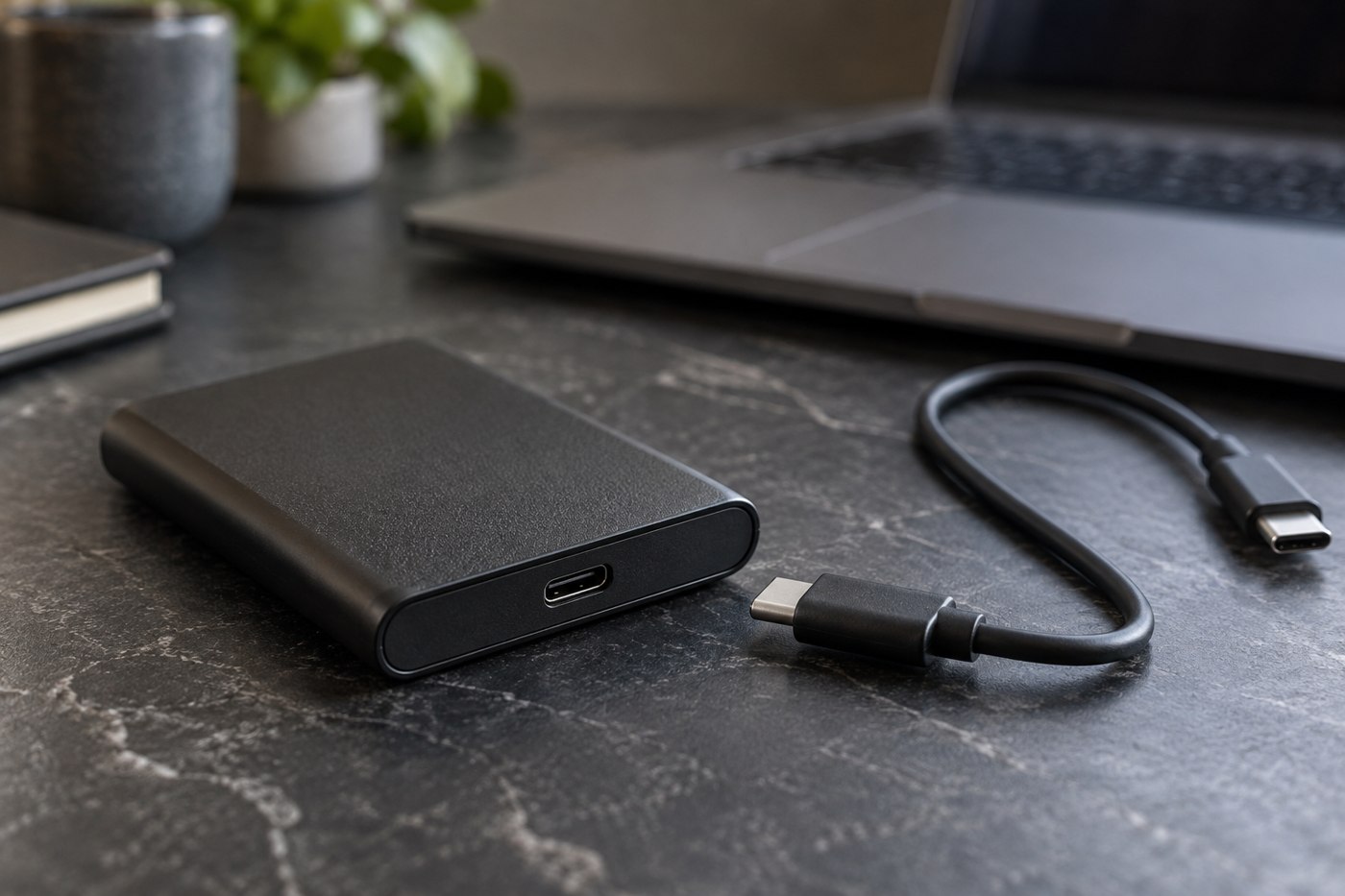
Inspect the cable and connectors for visible damage without inserting tools into ports. Stop using damaged equipment. With an undamaged setup, consult the drive's documentation for a suitable replacement cable and connect directly to a supported computer port where possible. Keep the original hub or dock out of this first comparison so there is one fewer variable.
Samsung's portable SSD documentation ties transfer capability to the host and cable, illustrating why a matching plug alone is insufficient. Use a known suitable data cable, not simply another cable that happens to charge a phone. Record the cable used and the port chosen so you can reproduce the result.
Set the drive on a stable surface and leave slack in the lead. Test with a small, nonessential file only after the connection remains stable. If the drive is intermittently accessible and the contents are valuable, prioritise preserving them rather than trying to generate a perfect speed measurement.
Use the result to narrow the question
If one cable works consistently and another does not, replace the suspect cable with an appropriate one. If the behaviour follows a particular hub, examine that hub's support and power requirements. If it follows the drive across suitable connections, contact the drive manufacturer with the exact model and observations.
Do not present a single successful transfer as proof that the drive is healthy. Keep another copy of the files and watch for recurring errors. A useful troubleshooting record contains the symptom, connection path and result of each controlled change; it should not become a list of increasingly invasive actions performed without knowing which one helped.
Separate detection, copying and opening a file
Work through the symptom in stages. First establish whether the operating system identifies the device. Then determine whether its volume is accessible. Only after that ask whether a particular file opens in an application. A visible drive containing an unsupported video is a different situation from a drive that repeatedly disconnects before any folder appears.
If only one file fails, preserve the original and compare with another known file of the same type. Record the application and error. If every transfer fails at the same connection point, document the port, cable and any intervening adapter. This branching record prevents an application-format problem from sending you through unnecessary hardware purchases.
Stop testing when the next action would risk the only copy. Important files take priority over proving which component deserves blame. A professional recovery service or manufacturer support may need the device in its current state, so explain what you have already tried and avoid presenting a long series of undocumented repair attempts.