An audio interface is a bridge between analogue equipment and the computer, but not every input accepts every kind of signal. Start with the microphone's exact model and manual. Identify its output connector, documented power requirement and recommended connection, then compare those with the interface's input description.
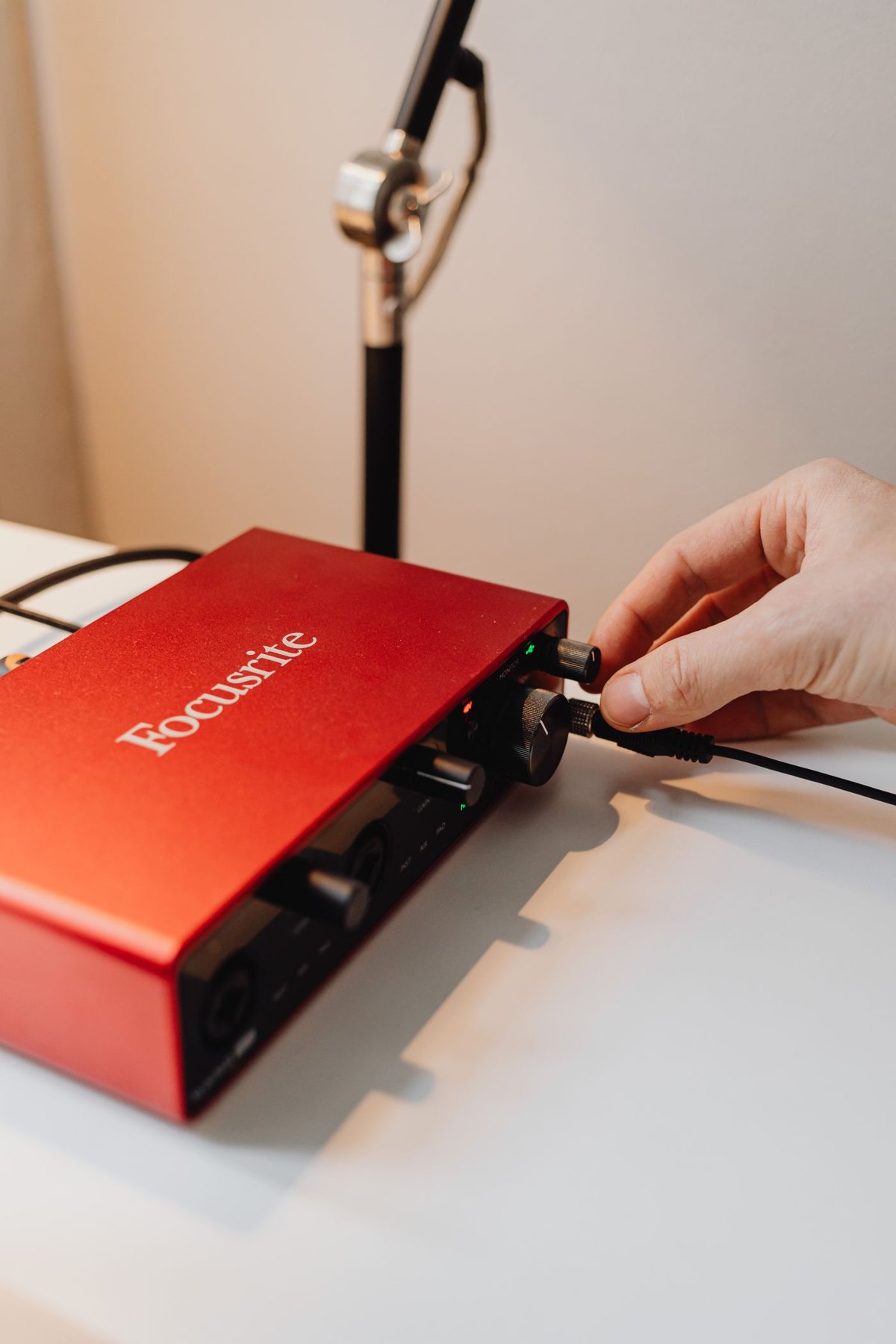
Do not begin by counting sockets. A front-panel connector may combine different input types, and the way it is used can change the expected signal. Focusrite's hardware guidance distinguishes microphone, line and instrument connections. A plug that fits does not by itself make an output suitable for the selected input.
Establish whether the microphone needs this interface
A USB microphone already includes a digital connection path for supported hosts. It should not be assumed to connect to an interface's analogue microphone input through a simple adapter. If a microphone offers both USB and XLR, read the manual for the functions available through each path and choose the one that serves your task.
For an XLR microphone, verify the cable type and the interface's microphone input. Check whether the microphone requires phantom power and whether the interface supplies the documented form. Follow both manuals when connecting and enabling power. Do not apply phantom power to an unrelated device merely because it has been adapted to an XLR plug.
Gain and monitoring solve different problems
Input gain controls the signal entering the recording path. Headphone volume controls what you hear. If your monitoring is quiet, first determine which path is quiet rather than raising input gain until the recorded signal overloads.
Read the microphone and interface specifications together when evaluating available gain. A combination that needs substantial gain may deserve a specific compatibility question to the manufacturer. Do not purchase an inline booster automatically; it adds another device whose power and connection requirements must be checked.
If you want to hear yourself without a distracting delay, inspect the interface's direct-monitoring feature and its controls. Focusrite's explanation describes this as a near-zero-latency route from input to output. That route can be useful, but it does not mean the recording software is receiving or saving the signal correctly.
Work through a simple test
Consider a first voice-recording setup. Connect the supported microphone as instructed, select the interface in the computer and application, and use the appropriate input channel. Speak at a normal level while watching the recording meter. Adjust through the documented range, record a short sample and play the file back.
If only one side of playback contains your voice, inspect whether the application has treated a single microphone input as one side of a stereo track. Follow the application's mono-input routing instructions rather than assuming a second microphone is needed. If the interface shows input but the application does not, check the selected device, channel and permissions before replacing the cable.
Read a compatibility answer carefully
A manufacturer saying the interface supports microphones is too broad to settle an unusual setup. Provide the microphone model, cable, intended input and computer. If you also need two people on separate tracks, say so explicitly. Two sockets on the front may represent different input types rather than two equivalent microphone channels.
Suppose the first voice records correctly but a second microphone cannot be connected as expected. Before buying an adapter, inspect the second input's intended function. An instrument input is not automatically another microphone preamp. The appropriate solution may be an interface with the required microphone inputs, rather than a chain that merely makes the connector fit.
For a single microphone, consider whether you need additional line outputs, instrument inputs or software bundles at all. A simpler interface with clear controls may serve better than a larger unit whose routing you rarely use. Conversely, if a specific upcoming task requires separate microphones, planning that requirement now can avoid replacing the interface later.
When comparing models, keep the compatibility evidence separate from subjective sound expectations. A supported input, sufficient documented operating range and a verified recording path are concrete requirements. Claims that a particular box will transform every voice should not substitute for those checks.
Include the computer and the next realistic task
Verify current operating-system support, drivers, host connection and power requirements. A compact interface that needs software installation may be unsuitable for a locked-down work laptop. Check headphone output compatibility and the controls you need to reach while speaking.
Count simultaneous inputs for a specific future task. Two people with separate microphones need a different arrangement from one person recording voice and occasionally connecting an instrument. Extra sockets have value when you can name their purpose, but they do not compensate for an incompatible microphone or an unclear recording path.
Keep the tested cable, input settings and sample file as a reference. The interface is ready when the complete microphone-to-file path works, not merely when its power light turns on.