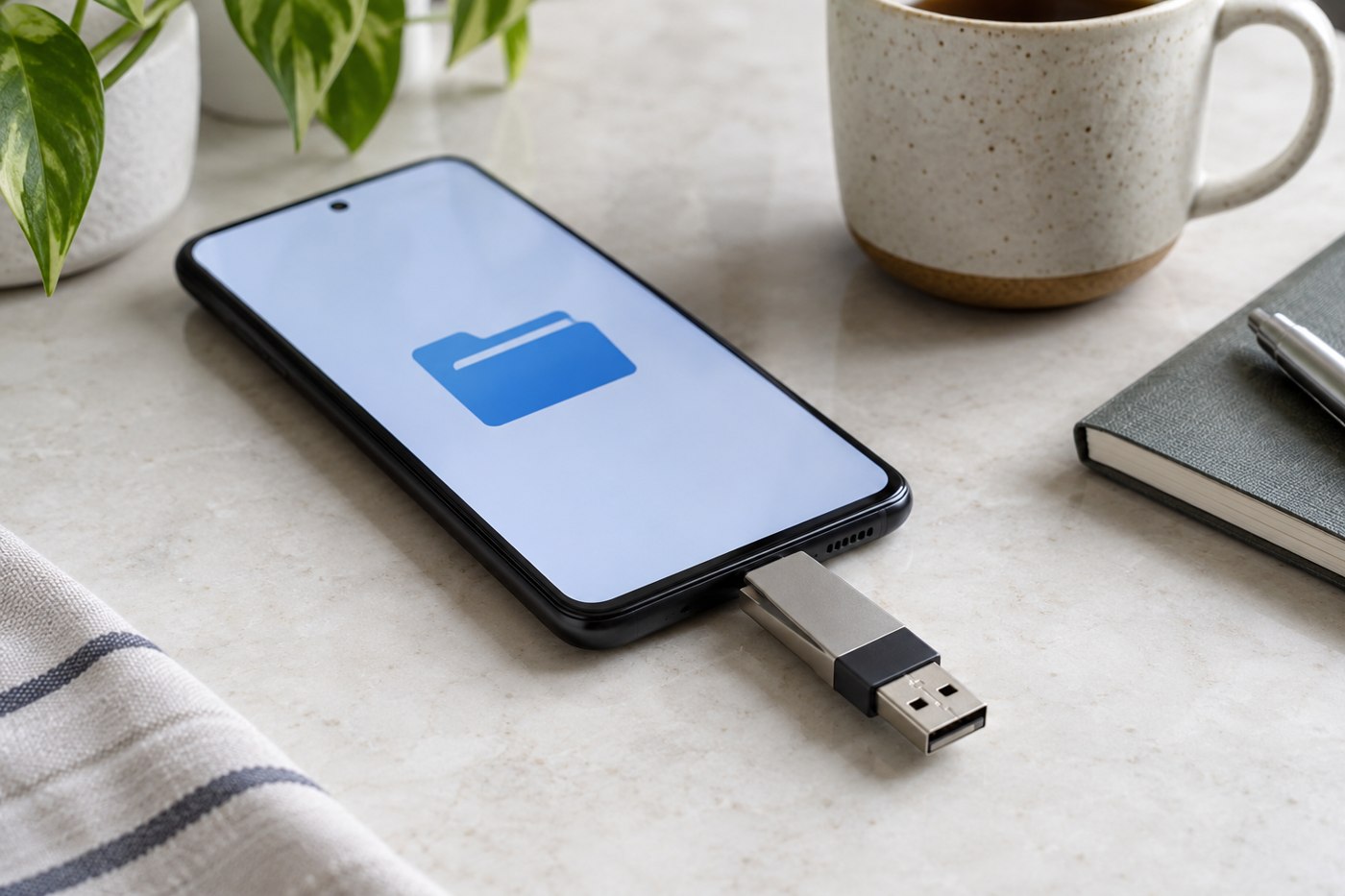
A USB drive connection involves more than finding an adapter with the right sockets. The phone must support the intended external-storage use, the drive must use a supported arrangement, and an application must be able to access the files. Start with the phone manufacturer's documentation for your model and software.
Apple's iPhone external-storage guide describes supported formats and a single-data-partition requirement. Those details illustrate why a physical connection alone is not enough. Other platforms have their own requirements, so use the instructions for the device you have rather than applying a universal format recommendation.
Preserve the existing files first
If the phone does not recognize a drive, do not immediately format it. Formatting can erase its contents. Check what is stored on it and keep a verified copy elsewhere before considering any change to its layout or format.
Try to identify the drive using a computer or another appropriate device if that is part of your normal setup. Record its format and capacity, then compare the information with the phone's requirements. A problem with the cable, adapter or power arrangement should not be mistaken for a reason to erase data.
Follow the documented connection route
Use the connector or adapter described by the manufacturer and check whether the drive needs an additional power arrangement. Avoid building several adapters into a chain without confirming their purpose. If the phone has a case, make sure the plug seats correctly without forcing it through the opening.
Open the file-management application or other supported route described for the phone. The drive may not appear inside every application automatically. Test with a non-sensitive sample file of a type you intend to use, and confirm whether the task is viewing, copying or editing.
Verify a copy before removing the original
After moving a file, open the destination copy and check that it is usable. Keep the original until the transfer has been confirmed. Follow the platform's instructions for finishing activity and disconnecting the device, rather than pulling it out while a copy is still running.
If this is for travel, rehearse the whole routine before leaving. Include the actual drive, cable, phone case and application. An accessory that works with a laptop does not automatically establish that the phone can complete the same task.
Separate three kinds of failure
If no storage device appears, investigate the documented connection, power and format requirements. If the drive appears but a file will not open, check the file type and application support. If a copy begins and then stops, note the message and investigate available space and the supported connection before repeating an important transfer. These observations are different and should not all be described as the drive does not work.
Use a replaceable test file when trying a change. Give it a recognizable name and verify the copy by opening it at the destination. If you are testing phone-to-drive and drive-to-phone transfers, check each direction separately; one successful view does not demonstrate that both copy operations completed.
Keep a valuable original somewhere independent while investigating. Do not accept an erase prompt simply because it is the only prominent button on screen. If you cannot identify the reason for a format request, stop and use the device or drive maker's support. The priority is preserving the existing data while establishing compatibility, not making an unfamiliar dialog disappear as quickly as possible.